Friday, 24 October 2014

My favourite iPad Apps


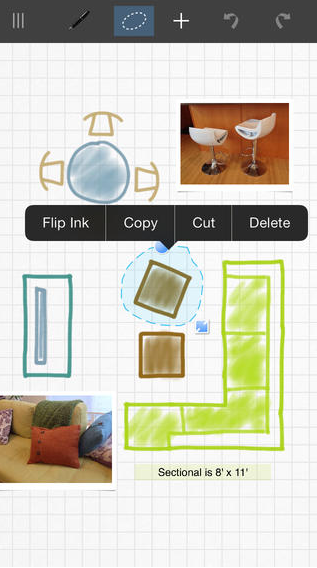
I love Paper! I am not good at drawing and I am very heavy handed, but when I use Paper I can make things which are beautiful! I usually use this for doing small drawings I put into presentations and I also use it for Brainstorming. I love that each project is contained in a beautiful moleskin style notebook. You can customise the front covers or leave them plain. This means students could have a different book for each subject or for each topic.
This app is FREE, but I recommended paying to get the upgarde so you have the full set of drawing tools.


This basically does the same thing as Paper, but all tools are FREE. However I still prefer Paper, because I love the notebooks, the examples of fantastic art made on the app and the over all look of the app. As a teacher I often use both these apps to make my class icon on iTunesU or to add images to the first slide of lesson presentations!


Phoster allows you to easily create bold and beautiful posters. They look very professional and stylish. I think the default font is probably Helvetica (the dreamiest of all fonts). My advisory group have been using this to make posters for our school Guiding Principles.  I'm going to start using this to make posters with debate motions and class discussion questions - I think having a Google Slide with one of these posters on would not only look beautiful, but would make a real impact.
This app costs £1.49 - if you would like a free alternative try Canva or Font Candy (which also makes beautiful posters and signs, but can be a little twee)


I did a whole blog post about this app a while ago! Basically it's a sketch book with prompts for what to draw on each page - things like 'write down as many four letter words as you can' or 'upload a photo you don't like of yourself and deface it'. I recommend suggesting students who are quite hyper and creative to use it (I use it!) or to set it as a project for students to do over the summer! It's quite therapeutic and I really enjoyed using this app myself! Penguin Group US also create This is Not an App - an equally amazing and very similar app, but it had less of a focus on drawing and includes writing a wish-list, recording sounds and other media inputs!
It costs £2.99 but it is well worth it!


I've been using the Pinterest website for a few years and only recently starting using their app. Originally I used Pinterest to collect and store ideas to improve my own teaching practice, but I now get students to use it to gather ideas and inspiration for various projects. The app is so easy to use and I am regularly pinning things on the bus! I also think it is good for students to have the app, as it stays logged in and the icon sits as a reminder on their iPad desktop! This app is also FREE.


If your school has a subscription make sure your students have this app. BrainPop is great for flipping the classroom and for checking student understanding. I use it often for homework and get students to simply take a screen grab of the results of the quiz. If you don't have a subscription try the BrainPop Featured Movie App. You can also read my guest post on BrainPop's blog about how we use it at my school. The apps are both FREE, but the first one requires a subscription to see all the fantastic videos.

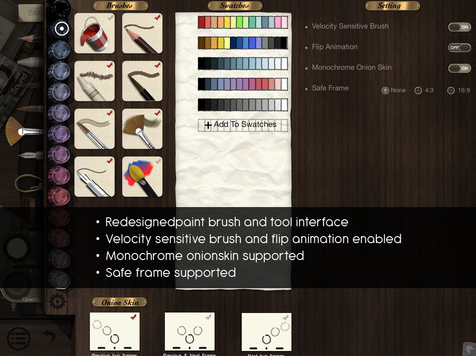


I spent a weekend in Berlin recently on an IB training course and turned up to the airport hours and hours early. I decided to spend time playing with this app and made some really cool animations. This was really easy to use and I made an animation really quickly! i would recommend playing with all the drawing tools to find what you like best, as every time I tried a new drawing tool I liked it more than the one before! Use this app to get students to animate stories or visualise mathematical concepts! They could make moving storyboards for drama or film projects or create animations to raise awareness for different PSHE issues. The premium version costs £2.99, but is well worth it.


One of amazing students drew my attention to this app! You can use this app to create amazing presentations with their stylish images and fonts. You can animate your images and add sound. This is fantastic for story telling, but I want my students to use it when pitching their Design ideas to the class. I also think students should use it when raising money for different charities. This is really easy to use and such high quality...but FREE!


With Tellagami you can design a character, then get them to say what you type or directly record your own voice. It looks just as if they are speaking. You can add emotions and change the background too. Students adore this app! Recently I had students do a presentation about a coding app/website to the class - several used Tellagami in creative ways including having their character introduce different sections of the presentations, use the Tellagami to interview the student presenting and even to speak as different figures they mentioned, (for example, one was supposed to be the woman who invented the app the student was presenting).  We've also used it at Halcyon to introduce school wide challenges, like our annual scavenger hunt around London! There's a FREE version and a paid version.
Similar apps including Sock Puppets and Puppet Pals - both are easy to use and equally aesthetically pleasing - I've used this to create trivia quizzes for my students (example here).


Popplet is a great app for BrainStorming. You can add multimedia and can colour code your sections. I usually use Paper if I am just doing a quick, simply brainstorm, but Popplet when it must be more detailed, when it will be part of their graded plan and when students have to work together to brainstorm! There's a FREE version and a paid version.


I have been using Morfo for a few years now and think it's incredible. The first time I used it I couldn't believe how something that was so easy to use created such impressive results. I also thought it was against science and or witchcraft. You upload a photograph of a face, select where the features are, then you can record your voice and the face moves as if it is speaking. You can even use paintings and drawings and even animals! You can do all sorts of magical things like doing project on Henry VIII and creating a video of him talking about himself! You can use this for all biographies or even animate characters from books! Of course there are also a range of silly features where you can add make up and make your character angrily dance to rock music! Using this with a photograph of someone you know can be incredible creepy - I am sure lots of children use this for all sorts of mischief, like animating photographs of their parents saying 'of course you can eat all the chocolate and stay up as late as you want'!
There is a FREE and paid version of this app.

Mini Mi


A really simple app where students can customise Lego Mini Figures. Mrs Jones introduced this to students to create Lego Gandhi's, but they have been using this at every opportunity since. It's popped up in class presentations and even in their essays. This is particularly useful for younger students - I can imagine getting my 8 year old brother to start a biography project by using this app! Really simple and a good way for students to get onboard with a project, because they love this.
This app is FREE.


This is the app I use to create my stop motion animations, (see some here and here). It's really intuitive and allows you to make high quality animations quickly. The only other tips I would use is to draw the curtains and turn on the light, so the light stays in one place, and use a stack of books as a tripod. WhenI first used it it was a bit more basic, but they have added tools for adding drawings and have more examples to show you.  Here's a tutorial for creating these that I made a million years ago.
Another great FREE app!


When students first do presentations they also put every single word they want to say on the board. This makes for a boring presentation and means the audience read off the screen and don't play attention to the speaker. Haiku Deck helps solve this problem. The presentations you can make with this have beautiful, high quality photos and only allow you to add a little bit of text - this means students just use it as a visual prompt and get more attention from the audience. Although I let students use any presentation tools they want (most choose Keynote), I tend to start them off using this, so that they develop good habits. I also used it for Debate Club and would use the slides to introduce new motions - you can see my Debate Haiku Deck here. You can also look through other people's presentations for inspiration!


Stick images together, add fonts, youtube videos and cute cartoon images. Easy-peasy! I think students use this for creating profile images for various social networks, but we have also used it in class. I had students use it to create splash pages when they made apps and have had students create posters too. Most students will already be familiar with this app -  it's pretty similar, but does the job well and it's FREE.


Another app that helps you to organise your ideas beautifully - This is really good for process journals for design or for note taking, (visual and written). It helps you organise your thoughts in a way which is easy for others to understand. The tools on this, like in Paper, make my handwriting and drawing look much nicer and the editing tool allows you to scrap useless notes, keeping your notes relevant and meaningful! I'm going to start using this when I go on training courses and might use it for a party I am currently planning.


I love this app - you can insert videos, drawings, photographs, and add voice overs to explain what is happening on the screen. You can even record your self drawing. Students used this app when creating their mini-biographies for Gandhi. I will be using this app a lot more this term, starting by getting students to animate their favourite Lego advertisements - they will insert the posters, annotate and highlight certain areas and will leave a voice recording too! I'm also going to get students to use this to add voice overs to plans they have made for things they want to make in Design.
This is one of the most popular iPad apps for schools and has a wide variety of uses for all subjects - if you want subject specific ideas, message me or search youtube. This app costs £1.99, but will be used a lot in schools! If you want to get something similar which is FREE, try ShowMe. 


This is an app I have not used yet, but have download ready to play with during morning commute. It was recommended by Mrs Jones and she uses it with our older grades to practice their skim reading - linking it to note taking. I know that as a teenager I would have really enjoyed this and probably become quite competitive (the same way I did with speed typing!) Another FREE app!


I have big dreams of one day doing a multidisciplinary Frankenstein unit with grade 6s or 7s - where in English students look at Mary Shelley's book, in Design students build robots, in Science they learn about anatomy, in Art they learn about the body and they look at the painting An Experiment on a Bird in an Air Pump, in Languages they learn different parts of the body in Geography they track the monsters route and the locations in the book and in History they learn about what was happening in the world then, in terms of enlightenment and science and attempts to reanimate corpses..and I am sure maths teachers would figure out something creative to tie themselves in!
This app would be perfect for such a thing! In this app you play different levels where you collect different body parts, (one game is about the muscles, another about the skeleton) and at the end you can use the bits you created to build a monster - you can also add in silly props, but your monster will not 'be alive!' My eight year old brother is learning about different parts of the body and loved played this game - he would shout out 'get the Oesophagus!' and other glorious things which showed me what he had learnt in school. Although my brother is quite young I believe it can be used for older students because so much information is provided about the different body parts...and it's FREE!

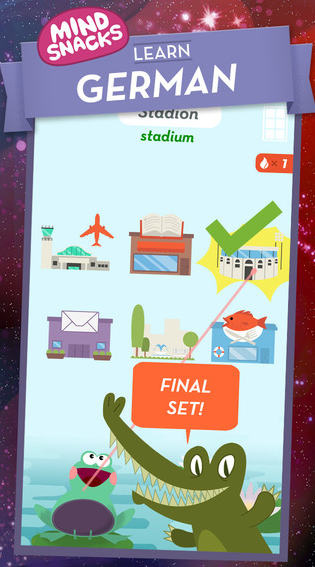


You can get this app for various languages, including German, Spanish, Japanese, Italian and Chinese. They have also started developing some to help students learn other things like US Geography and soon will have a maths version. Mind Snacks is a popular app in our school and I believe students often use it when they have finished their class work in language lessons, but I also see them choosing to use it before and after-school and during homework club. I have two young brothers who are both learning different languages,  French and German. We downloaded this and had a play and they both loved it! I also now know lots German words, including my new favourite the word for jeweller = Schmuck! I have always struggled to learn languages and dreaded French lessons at school, but this makes language learning fun and seems to make it much easier for me. I intend on moving abroad in the next few years and will have to use this for my own language learning!


This is another app introduced to me by Mrs Jones. I came into her class one day and she had the Grade 6s playing this as a group. They use this as a warm up regularly and track the two Grade 6 class scores, so they can compete with each other. The students were jumping up and down to play and were all helping each other - something you would never see with a traditional spelling test! I experimented with this using my baby brother (who accidentally used the one for older students) and he loved it. He is usually very reluctant to do anything to do with spelling and he had been rolling his eyes and moaning when we mentioned his spelling homework. We did this and he learnt how to spell words, and more importantly the meaning of them. It is a shame that teachers/parents can't input words, because he still hated doing his spelling homework (learning off by heart words like 'alien' and 'alienate').
They have two versions of this app, one for Grade k-5 and another for Grade 6-8, both are FREE!


Easily create your own e-books on the iPad. Add in images and videos, and play abut with font and text to make it a pleasure to read! You can also add audio recordings to make them more accessible. I used this last year when Grade 9 created e-books and it worked really well. I gave students a few demonstrations on using the app, but they pretty much just got on with it! The only tip I have is upload your videos to YouTube then add them as a link, as if you directly add them the file size gets too big and it won't export to many places. Use this app to make informative, educational books for your students, have them make their own books, anything from children's books to books about the universe! You could also try Little Story Creator which is a mixture of this app and Explain Everything...and is FREE.


Another app for for spelling, but this one is for older students. You can learn fantastic words, their meaning and synonyms and take part in challenges! A great way to stretch our older students vocabulary! My vocabulary is pretty limited and I am dangerously aware that I use the word 'excellent', 'incredible' and 'fantastic' far too regularly, so this might be the perfect app for me too!


Penguin Groups USA seem to make all the best apps and this is one of them. This help helps students memorize and understand classic poems and does so in a really interactive way. Not only will this open our students' eyes to poets they might have previously dismissed, but it will make them love them!


Another app for helping older students improve their vocabulary.  It looks quite silly, but this just adds to it, making it more fun. I suggest that English teachers battle their students in front of the class!


More proof that Mrs Jones shows me the best apps. She is incredible organised and seems to get a million things done and I am sure part of that is because she uses this app to help manage her time.
I know that I can be quite guilty of not managing my own time properly, as I will say I want to spend thirty minutes marking, take a ten minute break, then do another thirty minutes, but five minutes of marking feels like an hour and my breaks surely run over the set ten minutes! This app helps you manage your time, by diving up your tasks and selecting how much time you want to spend on each. You simply run the app and it tells you when you need to move on to the next task! This app helps you prioritise and get things done efficiently. It's great for teaching students time management skills and I tell them to use it for their Personal Project and for revision.


As mentioned before my youngest brother does not like to read - I think he does this as a protest, to revel against the rest of his family as they are all keen readers, (including my eleven year old brother who inhales books). I spent the evening with him the other day and tried out various apps to encourage him to read and this one worked the best. You open the app and choose a story - here you only have the title and can't see any details about what happens. It then asks you to fill in twenty words, by promoting you to write things like 'body part' 'plural noun' and 'adjective'. After this you choose an image for your story, then it puts all the words into a tale for you! As it has asked for certain word types the story flows wonderfully. My brother loved reading them and thought they were the funniest thing ever, (mostly because he has chosen words like 'farty' and 'boobies').
The app is FREE but comes with some in-app purchases - it does have a lot of free stories, so try these first and see how you get on! A great app to get students involved in story telling and reading, as well as understanding different word types and it helps them to stretch their vocabulary, (for example I wouldn't let Tommy use 'butt' for every body type, he had to think of lots)!

Hopefully that list gives you an idea of some of the iPad apps I use in the classroom. I am pretty sure I have left out loads, so keep an eye out for part two! As always, feel free to comment on the post or tweet me about this.

All images from the app's iTunes store page - linked in the title.

Tuesday, 21 October 2014

Google Chrome Apps and Extensions


Just a quick one!

The apps (and extension and themes) I am am currently using with Chrome. 

For some reason Quicktime Player is cutting off more and more of the audio at the start of my videos - apologies!

LegoLand Trip Review


Last Thursday we took our Grade 6 students to LegoLand Windsor for two workshops.
We unfortunately spent most of the day traveling, as we had cancelled trains, long waits for buses and connecting trains (apart from one very quick change where we all had to run around Slough station!)


We arrived a little late for our first workshop so had to complete is quickly.  The instructor showed us a presentation about different types of fish and habitats and we discussed how the various adaptations, from pattern to shape. Students then made their own fish and presented them to the class.
The workshop was far to easy for our students and probably just for KS2 students. I thought that because the workshop was for KS1, KS2 and KS3 that there would be differentiation to make sure the work was at the appropriate level. At the end of the class the students presented their fish, but were not prompted to talk about how it was adapted for a certain environment. It would have been nice to tie this part into what they had learnt or to have a class game - maybe one where the teacher put different habitats on the board and students had to sit down if their fish wouldn't survive there! I think Legoland missed out on making this really educational, but gave our science teacher ideas for adapting and improving this lesson for her students. The students also really enjoyed the lesson, which is always important! After half-term we can reflect on the trip and get students to analyse their fish in more detail!


Our second session was a bit more useful and related well to the coding students had been doing with me. Our instructor was very good at one on one support with our students but the introduction and explanation needed a bit of work. She asked several closed questions, so students didn't want to answer. If she has asked a really open question to begin, like 'What do you know about coding' then they would have had tons to say and she would have had an understanding of their knowledge/levels.
However this session was still a lot of fun. Students had to build their Lego Lion, then program it to stand up, roar and then sit down again. Many of the computers didn't have speakers, so students were a little disappointed about that, (they wanted to check out all the sound effects to make the lion not only roar, but squeak and beep). The extension task allowed students to get their lions to dance! This was really fun and students had to think about accuracy, so that their lion didn't decapitate itself/shake its own head off!


Ms McDonald and Ms Zago completing the task!


At the end of the session we got a little medal and a certificate. We also had a chance to go on the shop ride and got to go to the shop...where I bought way to much (gold Lego Brick keyring, Lego Halloween Set, Lego Pig Man Mini-figure and the amazing Lego Research Institute)


I also met this creepy Lego Brick

(I have been wanting this set for a while - will use it for my Lego Advertising and Gender Unit - online it's almost £50, but was only £15.99 at LegoLand)


The students had a lot of fun and I would do the trip again, but would spend the full day at LegoLand and would arrange a coach for travel. It would also be good to have more communication between the workshop leaders before hand and would be even better if they provided some exercises/worksheets/presentations/videos to use before you visit and some for after. I also recommend that they differentiate the sessions more, as they were far too easy.


Wednesday, 8 October 2014

Lego Coders

All my Grade 6 students had to present on a different coding app or website that had been assigned to them - including Touch Develop, Code.Org, Hopscotch, Daisy the Dinosaur, Hakitzu Elite: Robot Hackers, Cargo-Bot, Codea, Kodable and Lightbot. The students delivered amazing presentations and had made their presentations engaging by having Tellagami  and Morfo animations introduce sections or even act as the website/app developers in an interview, students even had their families test out the different coding games and of course all students used bizarre Keynote animations and transitions!

One of my students had even decorated his pages with photographs of Lego Coders that he had created! How cool is this:


I love how they are incorporating Lego into their homework, lessons and even class discussions naturally without any prompting now! Students even filled in a survey about how they would improve the school and one said 'More Lego' and another made an educational song using 'Everything is Awesome' as a starting point!

I am beaming!

Friday, 3 October 2014

Biography Lesson with Lego - Part Three

Another update on the Biography unit we are doing with Grade 6!
[Parts One and Two]


Students homework was to watch a BrainPop video and to take notes. They were also encouraged to do some extra reading and to include this information in their notes. They also broke down their notes into individual events. 

We handed out baseplates and green, orange and red bricks. Students looked at their notes, in the order they wrote them, and decided if each note related to the start (green), middle (orange) or end (red) of his life and placed the bricks on the baseplate in that order.


Students were then asked to make some observations on the Lego patterns. We had some great responses including "I have far too much information about the middle of his life and not enough about the start" and "Although the middle of his life was more important, I probably need more green bricks, because a biography should cover the whole of a person's life."

Students then re-ordered their notes and were told to select one event which corresponded with a green brick, another with an orange brick and finally one for a red brick.
Students were then given the task of making a Lego scene to correspond to each of the three events and were asked to take detailed photographs of each creation.

Green-Gandhi confessing to his father after stealing gold from his brother.

Orange-Gandhi moves to South Africa.

 
Orange - Gandhi moves to London and goes to university at UCL

Red-Assassination of Gandhi


We wanted our students to put their images on Explain Everything to create a mini biography of Gandhi. Michelle had spent some time working on a fantastic example to model to our students.
On the front cover Michelle pointed out all the things their biographies would need, including Gandhi's name, a witty title, the author and an image. Of course we had the students use Mini Mi to create a Lego Gandhi!


Students were tasked with creating their three chapters. This would include an information box, photograph, exciting chapter name and page number. Students were allowed to change backgrounds, fonts and the layout to make it as visually engaging as possible.


They then found a quiet place and placed an audio recording on top of each chapter. This was not there for them to record what was happening in the scene or Gandhi's life, but a space for them to talk about symbolism and the different Lego choice they made.
Students made comments like "I chose to make the prison cell very small as it is not a nice place to be" and "I gave the dad a hat, as he was an authority figure and worked for the Government" and "I gave Gandhi a beard in the last scene to show that he was older and it was toward the end of his life."

Lastly students had to write a page for CAPTAIN REFLECTOR! Michelle designed this minifigure and page idea to get students to reflect on the whole process and I chose some questions to help them with their responses!

 CAPTAIN REFLECTOR!


My Reflection so far:  This has been a fantastic project and students have completed a huge amount of work in a very short time! It is definitely giving me even more ideas for ways I can use Lego in my lessons and I am already writing two units based around Lego, (Lego and Gender and Lego, Social Media and Advertising).


We also had a lovely visitor from Lego Education, who helped us to get even more excited about our Lego project! Thanks Neil!


LegoLand Trip


We will be taking our Grade 6s to LegoLand in a few weeks for workshops to support their Design and Science classes. In Design we are learning how to code and in Science students have been looking at Eco-Systems!

The workshops we are taking part in are:

Computer Design & Control - KS3

ICT, Design & Technology and Science

Want to show your pupils how relevant computer control is? This workshop utilises LEGO WeDo Software where pupils will build and program an interactive model. The workshop covers key ICT terminology and touches on the need for computers in everyday life.


Understanding Underwater Workshop: HABITATS – KS3
  
Science, Design & Technology

Explore habitats, adaption and classification. Pupils will put their learning into practice by designing their very own LEGO fish before going on our world first underwater submarine ride to study real rays, fish, shark and other amazing sea life. Don’t forget to visit the touch pools on the way out to get hands on with some of the creatures!

I couldn't be more excited! 

LegoLand is easy enough to get to and the tickets are only £8.95 including park entry.


LegoLand provide a few worksheets too, including a great teachers map.

I had a look through their workshops and saw that they even do business workshops for 16-18 year olds! I am doing a Theme Park Design unit with some of my students soon and although they are a little younger it might suit them well.

Expect a review about the trip soon! If anyone else has been and can think of some good learning experiences to have with the students around the park, please send me a message.